
The settings within Gateway Solver can be overridden using the command line by stipulating the appropriate parameters at the time Gateway Solver is launched, it is possible to automate the software. This is especially useful if you need to change the Gateway Solver settings in order to change Government Gateway online filing settings if you use one installation of Gateway Solver to file for multiple companies (note: a separate license is required for each company you intend to file for). You can also use these command line parameters to start Gateway Solver with different polling interval settings, perhaps two shortcuts on your desktop - one for fast, rapid polling, and another for running Gateway Solver overnight.
In order to use the Command Line correctly, knowledge of Microsoft Windows' shortcuts and properties is needed.
The Properties
The properties which can be used with Gateway Solver are:
- -UTR <number> (e.g. -UTR="9876543210")
- -GATEWAYSenderID <string> (e.g. -GATEWAYSENDERID="ABCDEFG12345")
- -GATEWAYAuthenticationValue <string> (e.g. "Gateway Solver.exe" -GATEWAYAuthenticationValue password1)
- -HMRCTaxOfficeNumber <string> (e.g. "Gateway Solver.exe" -HMRCTaxOfficeNumber 123)
- -HMRCTaxOfficeReference <string> (e.g. "Gateway Solver.exe" -HMRCTaxOfficeReference R555)
- -VAT <number> (e.g. -VAT="987654321")
- -MaxPollTimes <number> (e.g. -MAXPOLLTIMES="90")
- -PollIntervalSeconds <number> (e.g. -POLLINTERVALSECONDS="10")
- -TestMode <true> or <false> (e.g. -TESTMODE="true")
- -DisableAutoUpdate <true> or <false> (e.g. -DisableAutoUpdate="true") [the default setting is false, Gateway Solver will check for automatic updates each time it runs]
These properties can be used singly, or together.
Putting it all together, for example:
"C:\Program Files\Evolved Software Studios\Gateway Solver\Gateway Solver.exe" -UTR="1234567890" -GATEWAYSenderID="ABCDEFG12345" -GATEWAYAUTHENTICATIONVALUE="password1" -HMRCTAXOFFICENUMBER="123" -HMRCTAXOFFICEREFERENCE="R555"
Screenshot Walk-through:
Step 1
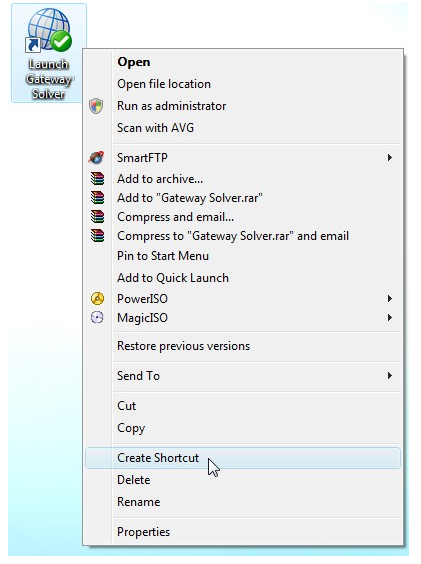
Right click the "Launch Gateway Solver" shortcut on your desktop and select "Create Shortcut". This operation will create a duplicate shortcut on your desktop to Gateway Solver, called "Launch Gateway Solver (2)". Rename this file to something that makes more sense to you, such as "Gateway Solver for Company 2" or "Gateway Solver Test Mode".

Step 2
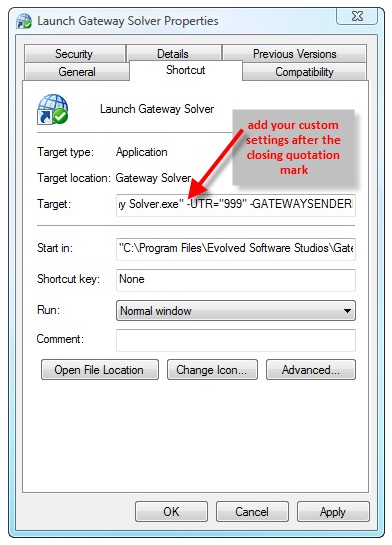
Right click the new shortcut and select "Properties". We need to alter the target of this shortcut and append the custom properties that we wish to use to it.


Step 3
Enter each custom property that you wish to change after the Target closing quotation mark. Make sure that you are careful with how you use your spaces. One space between each property setting, each property starts with a "-" symbol and has a "=" symbol between the property name and the setting value. For example: -UTR="999" will cause the UTR to be overwritten to the value "999" regardless of what your stored/saved UTR setting value is.

Comments
0 comments
Article is closed for comments.